Embedding Spreadsheets in SaaS Apps: The Complete Guide
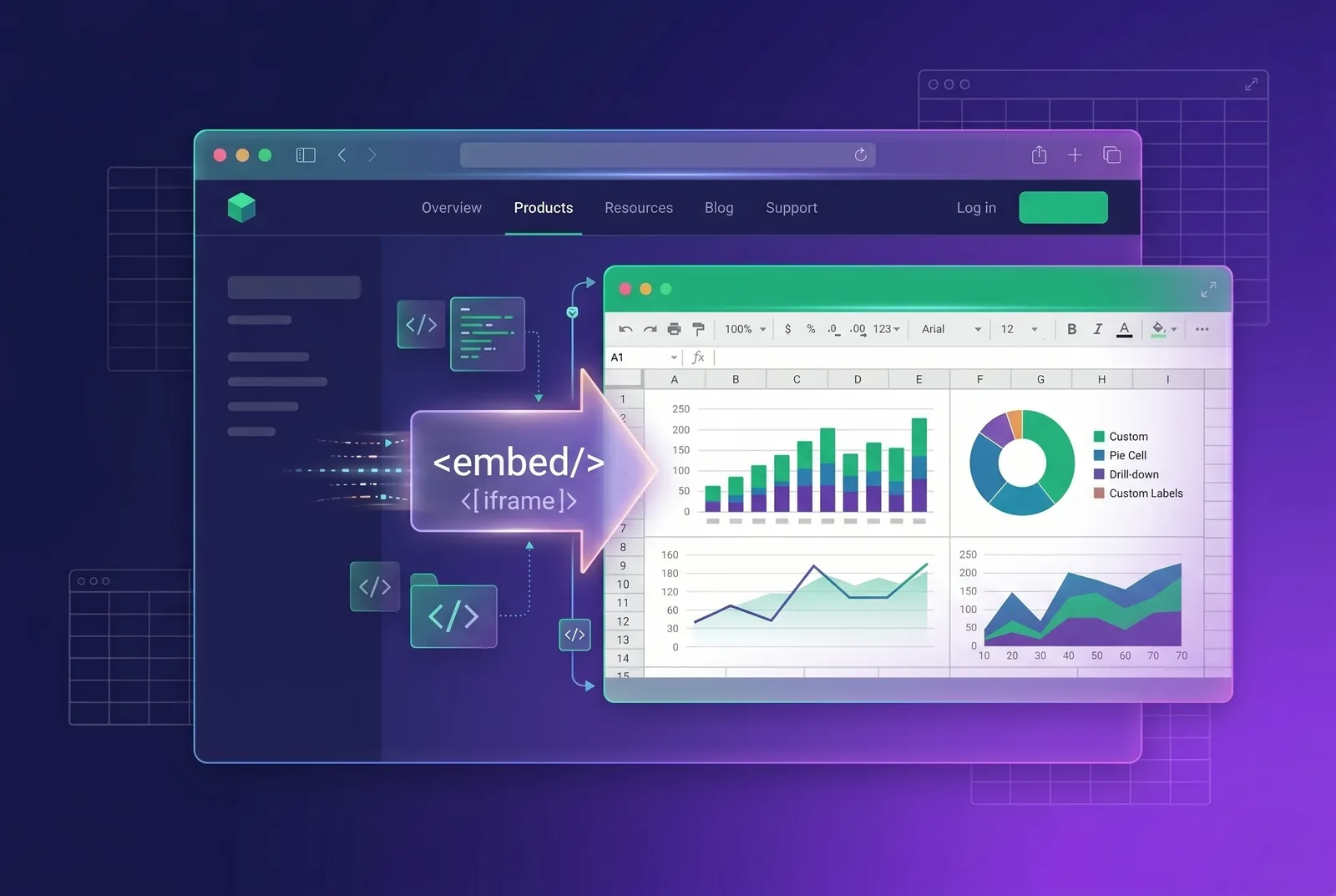
Embedding a spreadsheet inside your SaaS gives users the familiar grid they already know — editable cells, formulas, and file import-export — without sending them off to Excel. This complete guide covers the use cases, the architecture, data binding, performance, and security so you can ship a native spreadsheet with confidence.
Almost every data-heavy SaaS reaches a point where the cleanest UI in the world still loses to a blank spreadsheet. Users want to bulk-edit, run quick math, paste a column from Excel, and see totals recalc instantly. When your product can't do that, they export, do the real work elsewhere, and re-import — and every round-trip is a moment you lose them.
Embedding a spreadsheet directly in your app closes that loop. This is the complete, end-to-end guide: why you'd embed one, the use cases that justify it, the architecture and data binding, performance at scale, security and privacy, and how to get started in an afternoon.
Why embed a spreadsheet at all?
A spreadsheet is the most widely understood data interface in existence. Embedding one means meeting users where their instincts already are — no training, no onboarding, no documentation. The strategic upside breaks down into a few clear wins:
- Zero learning curve — every knowledge worker already knows how to use a grid.
- Bulk operations and ad-hoc analysis that would take dozens of bespoke screens to replicate.
- Data and trust stay inside your product instead of leaking to a stray file on someone's laptop.
- New workflows — budgeting, planning, cleanup, reporting — that you could never justify building as custom UI.
- Stronger retention, because users never have to leave to get real work done.
We make the broader business and cost argument in our companion piece on the SaaS-native spreadsheet build-vs-buy decision. This guide is the practical sequel: assuming you've decided to embed one, how do you actually do it well?
What are common embedded-spreadsheet use cases?
An embedded spreadsheet is rarely a feature on its own — it's the engine behind a workflow. The patterns below show up across nearly every category of B2B software.
Finance and budgeting
Forecasting, budget templates, and what-if models live and die by formulas. Users expect to type =SUM, drag a fill handle, and watch dependent cells recalculate. A formula-capable grid turns your finance module from a rigid form into a real modeling surface.
Operations dashboards and internal tools
Ops teams thrive on editable grids: inventory, scheduling, capacity planning, and back-office admin panels. Embedding a spreadsheet lets your internal tools handle bulk edits and quick math without you shipping a new screen for every request.
Data ops and cleanup
Importing messy CSVs, deduping, normalizing, and reviewing rows before commit is classic spreadsheet work. A grid with paste, fill-down, and find-and-replace makes data cleanup a first-class step in your pipeline instead of an export-to-Excel detour.
Reporting and replacing Excel Online iframes
Many teams bolt on an Excel Online or Google Sheets iframe to give users a grid. It works until you need real data binding, theming, offline support, or control over where the data lives. A native embedded engine replaces that iframe with a component you actually own — same familiarity, none of the third-party coupling.
| Use case | What the embedded spreadsheet provides |
|---|---|
| Finance & budgeting | Formula engine, recalculation, modeling templates |
| Ops dashboards | Editable grids, bulk edits, quick math in place |
| Data ops & cleanup | CSV import, paste, fill-down, find-and-replace |
| Reporting | Pivots, charts, formatted XLSX export |
| Internal tools | Drop-in admin grids without bespoke screens |
| Replacing Excel Online iframes | Owned component with real data binding |
How do you architect an embedded spreadsheet?
Embedding a modern spreadsheet means dropping in a component and wiring it to your data flow. There are four moving parts worth understanding before you build.
The component and your data
The spreadsheet renders from a data source you provide — usually an array of rows or a workbook object loaded from your API. WorksheetJS ships as a drop-in engine on npm as @worksheet-js/core, with first-class wrappers for React, Vue, Angular, Svelte, and vanilla JavaScript, so it slots into whatever stack you already run.
Events and onChange
User edits flow back to you through change events. You subscribe to an onChange callback, receive the updated workbook (or a granular cell delta), and decide what to do — update local state, validate, or queue a save. This is the seam where your business logic plugs into the grid.
Persistence and saving
Decide early how edits become durable. Common patterns are autosave on a debounce, an explicit save button, or optimistic local state synced to your backend. Because the workbook serializes cleanly to JSON, you can persist it to your own database without any vendor lock-in on the storage layer.
Multi-sheet workbooks
Real spreadsheets are workbooks, not single grids. Tabs let you separate inputs from outputs, raw data from summaries, or one entity per sheet. A capable engine supports multi-sheet workbooks natively with cross-sheet formula references, so your modeling stays organized.
How does an embedded spreadsheet perform at scale?
Performance is where naive embeds fall apart. The deciding factor is how the grid renders cells, and it comes down to canvas versus DOM.
A DOM-based grid creates a real HTML element for every visible cell. At a few thousand rows the browser starts to choke on layout and reflow. A canvas-rendered grid paints cells directly to a single surface, sidestepping per-cell DOM overhead entirely. That's why WorksheetJS uses canvas rendering and stays smooth at 100k+ rows — the kind of scale real production datasets hit.
If your users will ever load a real dataset, choose an engine that renders to canvas from day one — retrofitting performance later is a rewrite, not a tweak.
For a deeper comparison of how leading grids handle rendering and scale, see our roundup of the best React spreadsheet components, which weighs canvas versus virtualized DOM approaches side by side.
Is an embedded spreadsheet secure and private?
When you embed a spreadsheet, you're putting potentially sensitive data — financials, customer records, plans — into a component. Where that data is processed matters enormously, especially for regulated industries.
- Local computation: formulas and recalculation should run in the browser, not on a vendor's servers.
- Web Worker isolation: heavy calculation belongs off the main thread so the UI stays responsive and the work stays sandboxed.
- No data exfiltration: a privacy-by-default engine never ships your users' cell data to a third party.
- Your storage, your rules: serialize to JSON and persist in your own database under your own compliance posture.
Should you build or buy?
A spreadsheet is really four hard products stacked together: a fast rendering layer, a formula engine, clipboard and file interop, and a long tail of undo/redo, frozen panes, merged cells, and accessibility. Hand-building all four is a multi-quarter commitment you then own forever. Buying an SDK trades a license fee for those quarters and gets you features — AI assistance, charts, pivots — you'd never prioritize from scratch. Build it yourself only if the grid is literally your product or your needs are genuinely trivial; otherwise, buy wins on time-to-value. Our build-vs-buy deep dive runs the full math.
How do you get started?
Embedding the engine is deliberately undramatic. Install the package, render the component, bind your data, and handle changes:
import { Worksheet } from "@worksheet-js/react";

export default function BudgetSheet({ data, save }: {
  data: unknown[][];
  save: (workbook: unknown) => void;
}) {
  return (
    <Worksheet
      data={data}
      formulas
      onChange={(workbook) => save(workbook)}
    />
  );
}
That gives you 550+ Excel-compatible formulas, canvas rendering, copy/paste with Excel and Google Sheets, and full-fidelity XLSX, CSV, and JSON import-export — without maintaining any of it. From there you can layer on the 15-module AI copilot to let users build formulas, clean data, and generate charts in plain language.
Pricing, briefly
WorksheetJS has a free developer tier so you can prototype with no credit card. Paid plans start at $14.99 for Starter and $125 for Pro, with Enterprise priced custom — Enterprise is also where OEM and white-label embedding live, for products that need to ship the spreadsheet as their own.
Conclusion
Your users already do their real work in spreadsheets. Embedding a native one inside your SaaS meets them there — closing the export-and-reimport loop, unlocking new workflows, and keeping data (and trust) in your product. Get the architecture right, choose canvas rendering for scale, keep computation local for privacy, and you'll ship a feature users feel instantly at home with.